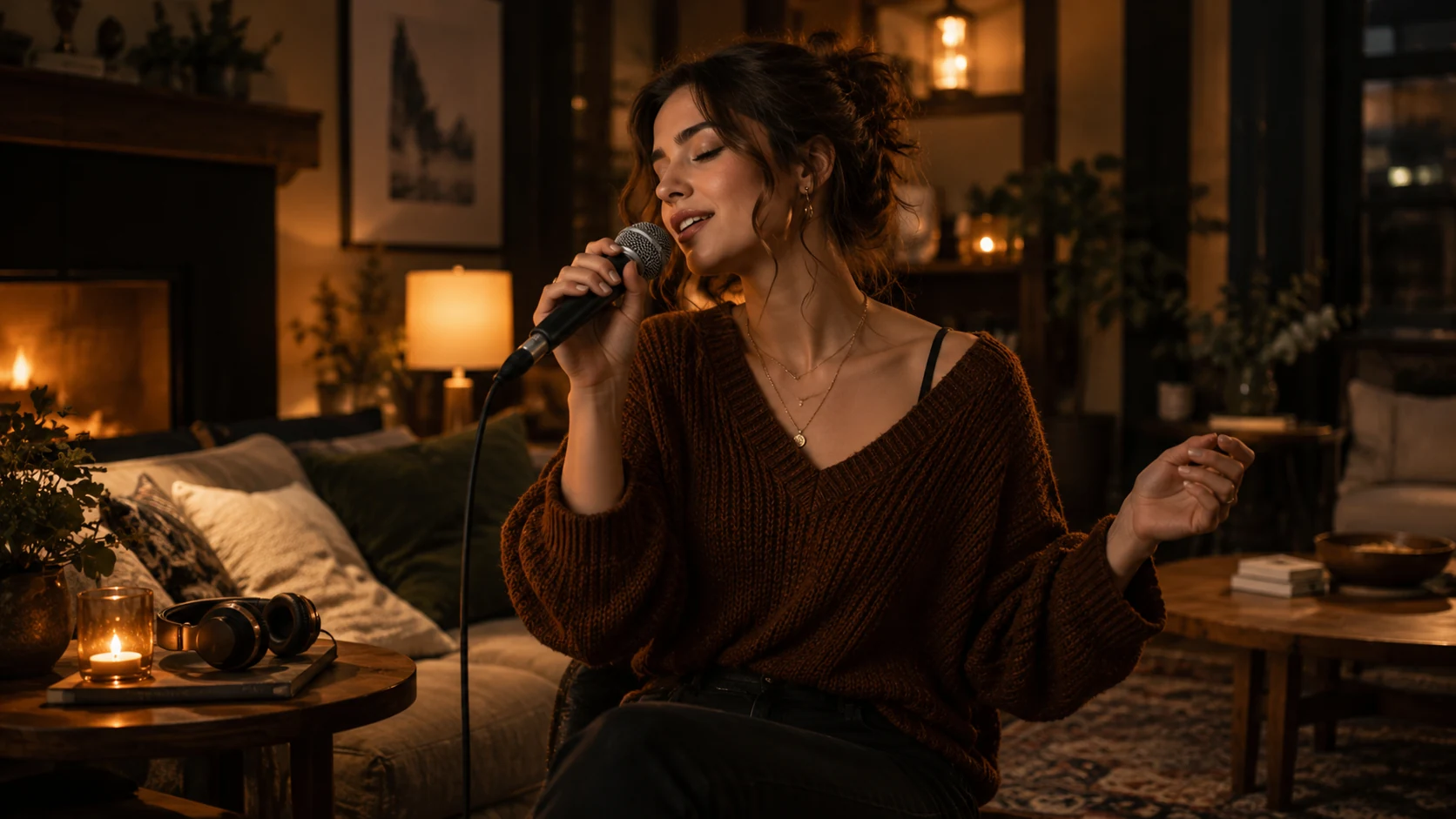
Learn a chorus at your own pace
Keep the words and accompaniment together while you rehearse entrances and phrasing, then move from a focused passage to the whole song.

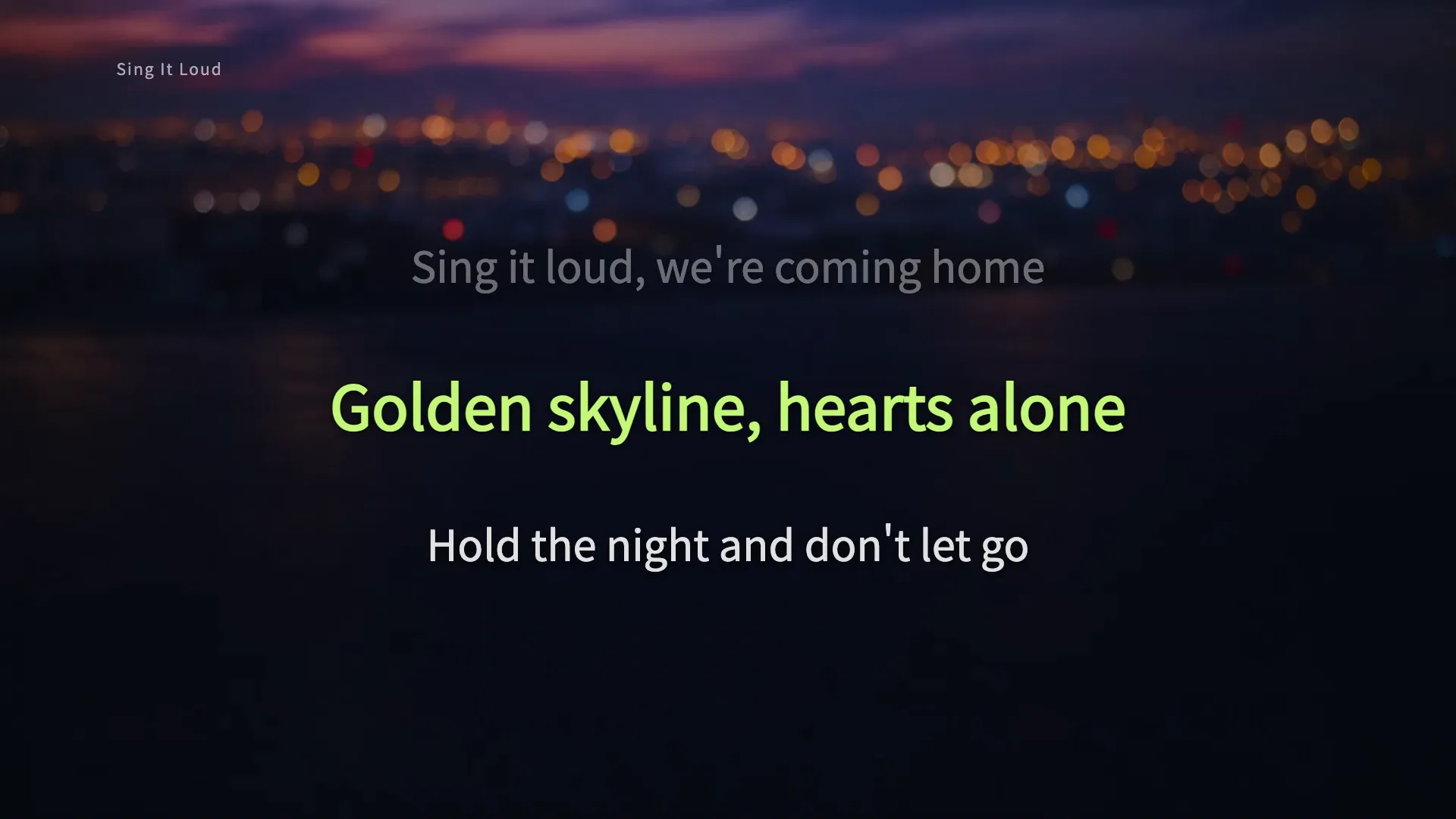
A familiar melody, the words in view, and room for your own voice. This karaoke video maker turns your audio and timed lyrics into a sing-along MP4. The three-line Trio layout shows the previous, current, and next lines on screen together so you can follow along and prepare for the next phrase. Make a focused practice clip or a song for friends, with the accompaniment and optional photos you choose.
See the line you are singing
The current line changes color as it plays, keeping your place in the song easy to see.
Know what comes next
The previous, current, and next lines stay on screen together, keeping the upcoming phrase in view so you can prepare for your entrance.
Take the song beyond the editor
Download your audio and lyrics together as an MP4, ready for practice or a shared sing-along.
Bring the music and words; shape the result in four short steps.
Upload a song or prepared instrumental, select the passage and choose which audio the video will use.
Auto-detect from a vocal recording, paste your words or import a lyric file. Review the text and line timings.
Add optional photos, arrange their order and choose landscape, portrait or square. Preview the classic lyric effect.
Check the preview and quoted cost, generate the video, then watch and download the finished result from history.
Choose the track that suits the moment. An instrumental leaves space for your voice; a recording with vocals can help you learn a new melody. The karaoke video maker previews and exports the same selected audio, so you can check the version you will actually sing with.
Bring a backing track you already have
Upload your prepared instrumental and keep that audio. Add lyrics and timing that match the same recording and arrangement.
Keep a vocal reference for rehearsal
Keep the uploaded vocals while learning the melody and entrances. Prepare an instrumental when you want more space for your own voice.
Prepare an instrumental here
Choose instrumental audio for a separate vocal-removal quote (up to 100 MiB and 30 minutes). Listen before generating; harmonies can leave vocal traces.
Give each phrase an entrance that feels natural to sing. Recognition and existing lyric files provide a starting point; your preview is where you check the words against the recording. Review quiet openings, repeated choruses and the last words of a phrase, then refine anything that arrives too soon or stays on screen too long.
Start from the words in your recording
Detect lyrics from a vocal recording, then correct unclear words, names and repeated lines.
Use lyrics you have already prepared
Paste lyrics or import TXT, LRC or SRT. Timed files keep their timestamps; plain text needs timing.
Refine the entrance of each phrase
Edit a phrase's start and end, or shift all lines with an overall offset. Preview your changes.
The words are the main event. Keep the background simple for focused practice, or use photos to give the song a visual setting. Choose a frame for the screen or platform you have in mind. A quick preview of longer phrases and photo changes helps you find a composition that feels right for the occasion.

Build an atmosphere with your photos
Arrange up to 60 optional photos in your preferred order. They share the passage evenly and stay uncropped.
Choose a frame for the occasion
Choose landscape, portrait or square, then preview longer lyric lines in that shape.
Check the words against every background
Keep busy details away from the lyrics. A plain background works well for focused practice.
Use the karaoke video maker for a chorus to learn, a backing track for friends or an original song to rehearse. These illustrated scenes suggest ways to use your finished video. Match the frame to the occasion, keep the words clear and let the singer take the lead.
Keep the words and accompaniment together while you rehearse entrances and phrasing, then move from a focused passage to the whole song.

Prepare a landscape sing-along for your screen. Pick a familiar backing track, keep the lyrics clear and test playback before people arrive.
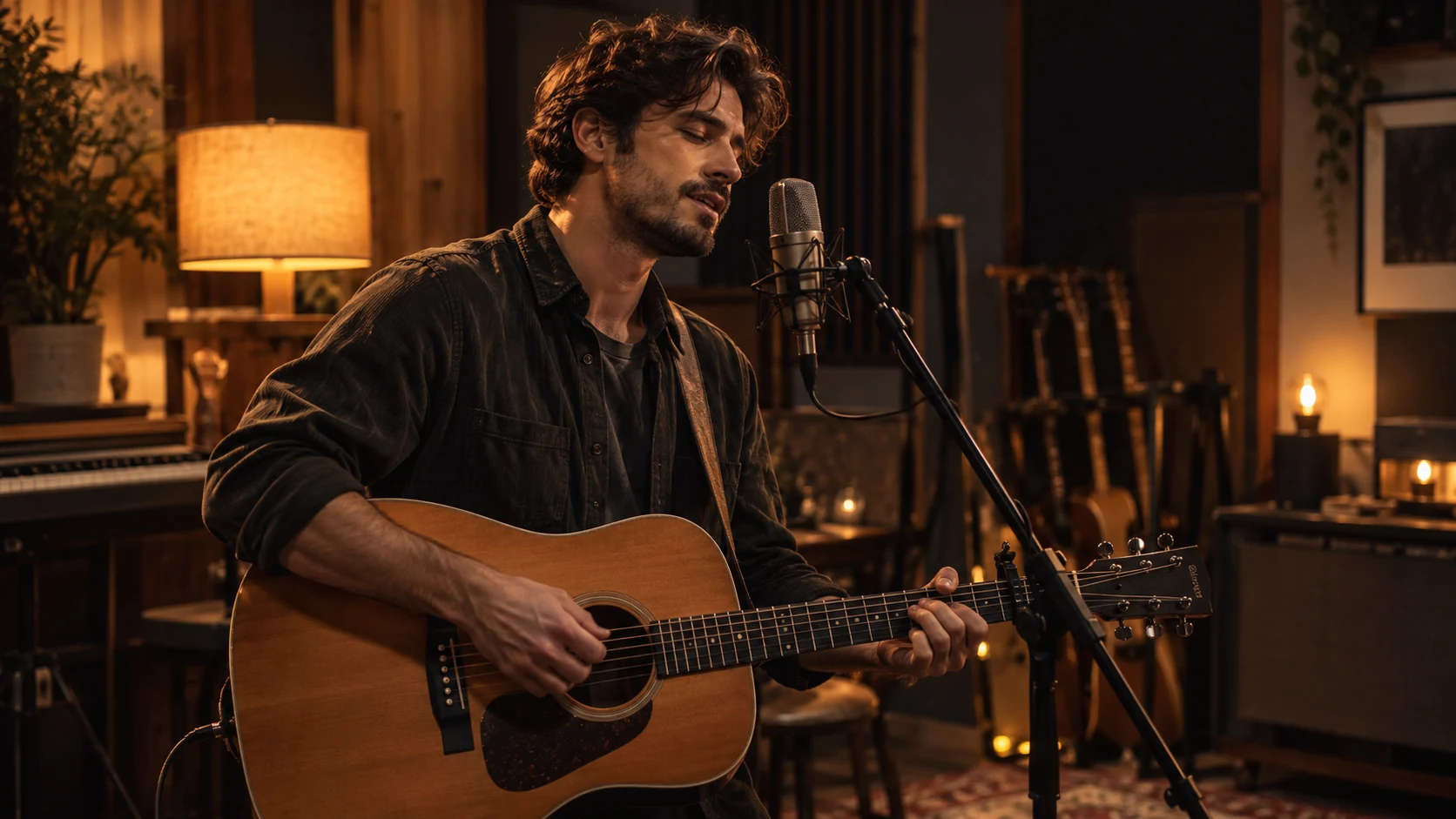
Share your accompaniment and intended lyrics in one video, giving collaborators a clear reference for unfamiliar verses and repeated choruses.
Keep your source files and check the selected passage before starting a render.
Upload one MP3, WAV or M4A up to 100 MB and ten minutes long. Select a video passage from ten seconds to ten minutes. Photos can be JPEG, PNG or WebP, up to 10 MB each.
Export H.264 video with AAC audio in landscape, portrait or square format. Non-members can export 720p; active members can also choose 1080p or 4K. Lyrics are included in the picture.
Video generation costs 1 Credit every 6 seconds at the 720p base rate; 1080p costs 1.5× and 4K costs 2×, rounded up to whole Credits. Vocal-removal processing always has its own quote, separate from video Credits.
A few practical answers before you make your karaoke video.
Bring your song, add the words and preview a karaoke video you can sing with.