YouTube Music VisualizerFrom your track.
To their screen.

Make a YouTube music visualizer with your own track, artwork, and a scene that fits. Export an MP4 ready for your channel.

Start creating

Upload music · Choose a style · Export MP4

Midnight Radio artwork
Midnight RadioDemo audio
0:16

Find your visual style

A different scene for every sound

Play these YouTube music visualizer examples with sound to find the motion and mood that fit your release.

A groove worth watching

Groove · Nu-disco

A warm turntable, a responsive spectrum, and room for your title. Give a rhythmic release a visible pulse.

Watch the rhythm
The bars follow the music while the background holds the mood.
Make it yours
Match your YouTube music visualizer colors to the palette of your cover.

Room to drift

Downtempo · Electronica

Moonlit water and a gentle waveform leave the music room to breathe. Let the quieter details of the track come through.

Listen across the track
Compare a quiet passage with a louder section before choosing your scene.
Leave some space
A calmer YouTube audio visualizer can keep the focus on the song.
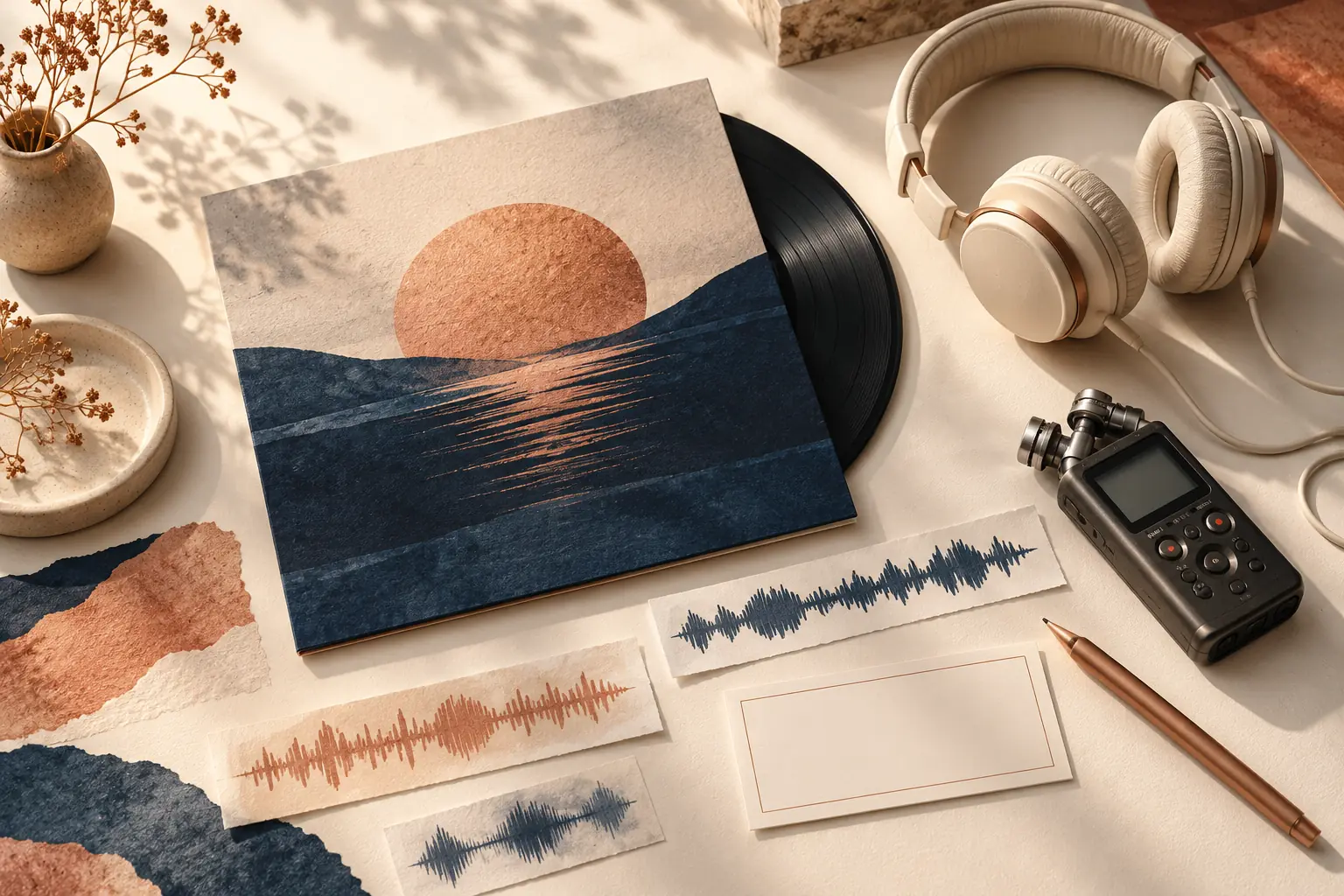
Illustrated release kit with album artwork, headphones, and audio recording equipment
Your release kitCreator illustration · music, artwork, and a point of view.

Made for your next release

Your sound. A visual signature.

You already have the song. A YouTube music visualizer gives it a moving home on your channel.

  • Let the beat be seen

    Give your song a visible pulse. Preview the YouTube music visualizer with a passage you love.

  • Keep your identity in frame

    Add your cover and title where supported. Carry a familiar palette through your release.

  • Picture and sound, together

    Download an MP4 with your selected music included, ready to review and upload to your channel.

From audio to YouTube in three steps

  1. Upload your track

    Upload the MP3, WAV, or M4A for your YouTube music visualizer. Choose a full song within the export limit or an excerpt.

  2. Choose your look

    Pick a scene, adjust the colors and motion, and add your title or artwork where the template allows.

  3. Export for YouTube

    Choose a frame and resolution, download your audio-reactive video as an MP4, then upload it to your channel.

Build your look

Four pieces. One unmistakable release.

Shape your YouTube music visualizer around the assets you already have. Each layer has a job; give each one a little space.

Your original trackMidnight Radio

Start with the right audio

Use the version listeners should hear. A chorus, a full track, or a quiet passage can each suggest a different visual rhythm.

Try this

Preview an energy change to hear and see how the movement follows the song.
Midnight Radio demo artwork
Your cover, in the spotlight

Let your artwork lead

Bring a clear cover into your YouTube music visualizer. Leave open space around it so the release stays easy to recognize.

Image files

JPG, PNG, or WebP, up to 10 MB each. Start with a clear source image.

Your artist nameMidnight Radio

Give the title room

Use the text layers in your chosen template for the song and artist. Keep the important words clear of the moving elements.

Small-screen check

Read the title at a smaller preview size. Add contrast if it disappears into the scene.

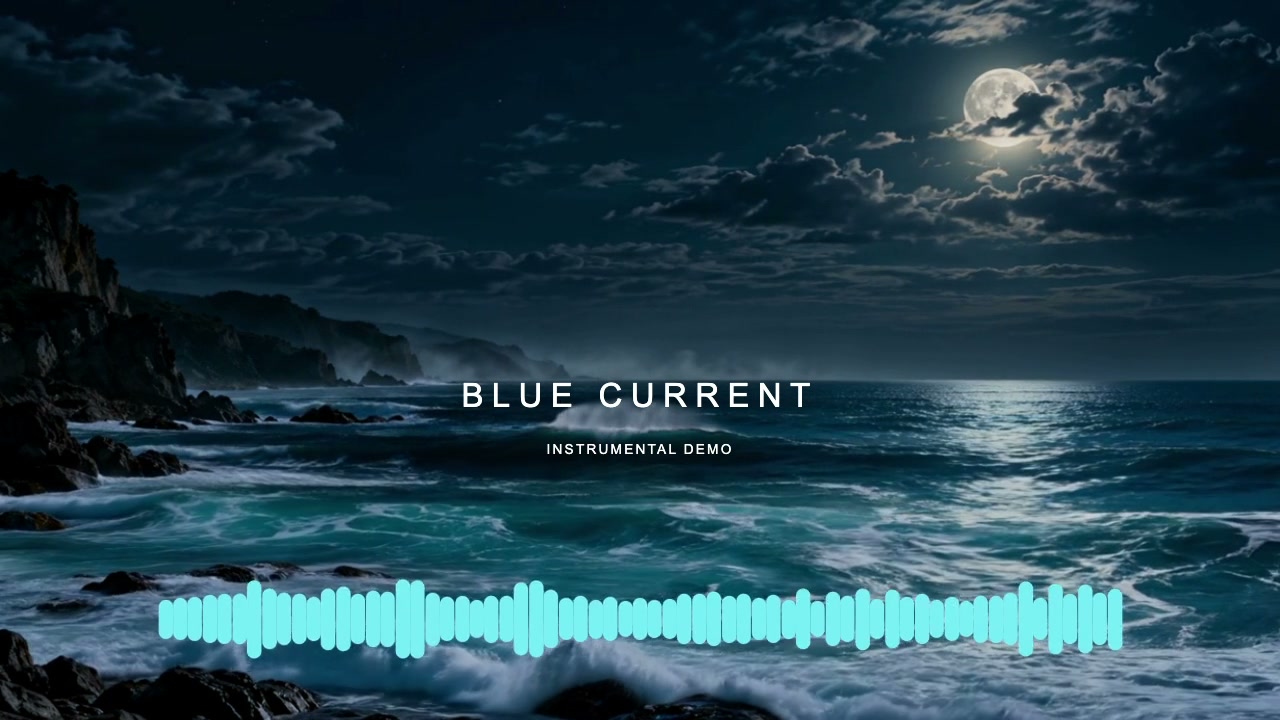
Moonlit ocean background from the Blue Current visualizer demo
Set the scene

Set the mood behind it

Try a scene, a simple palette, or your own background. A quieter backdrop can let detailed artwork and music visualization share the frame.

Keep it balanced

Watch the brightest part of the scene. Leave breathing room around your cover and title.

Compose for the screen

One track. Three ways to frame it.

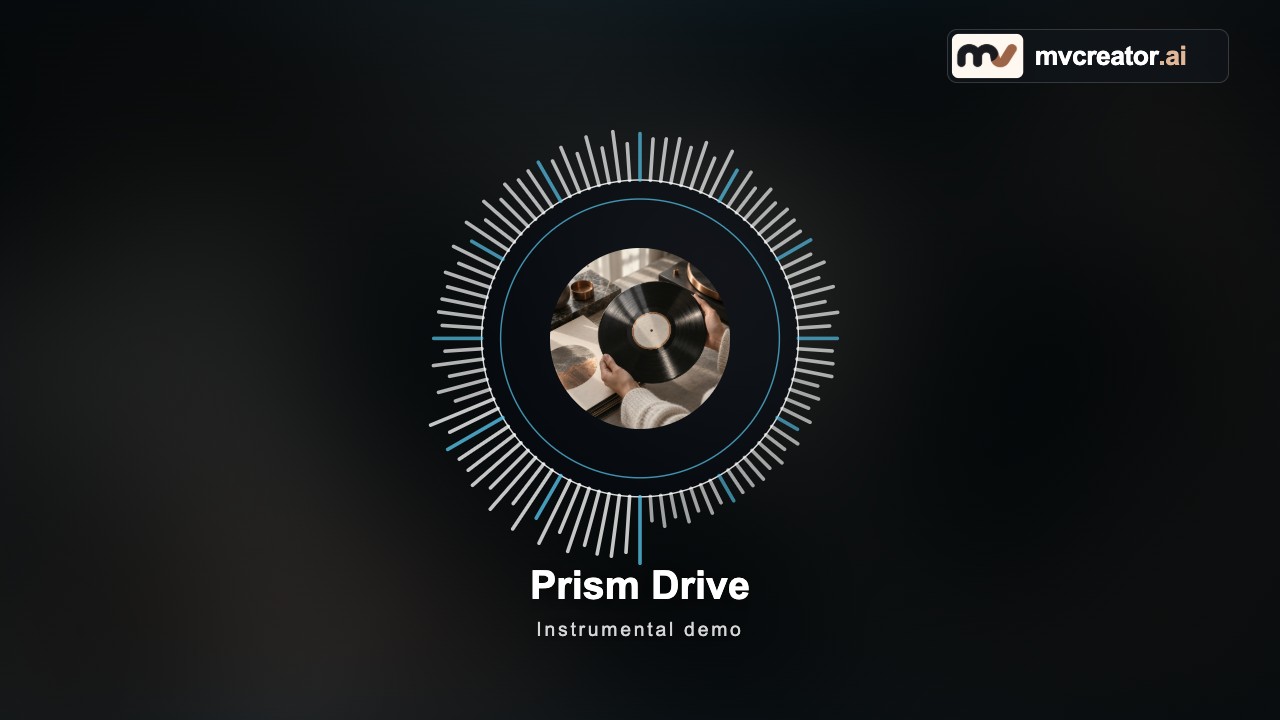
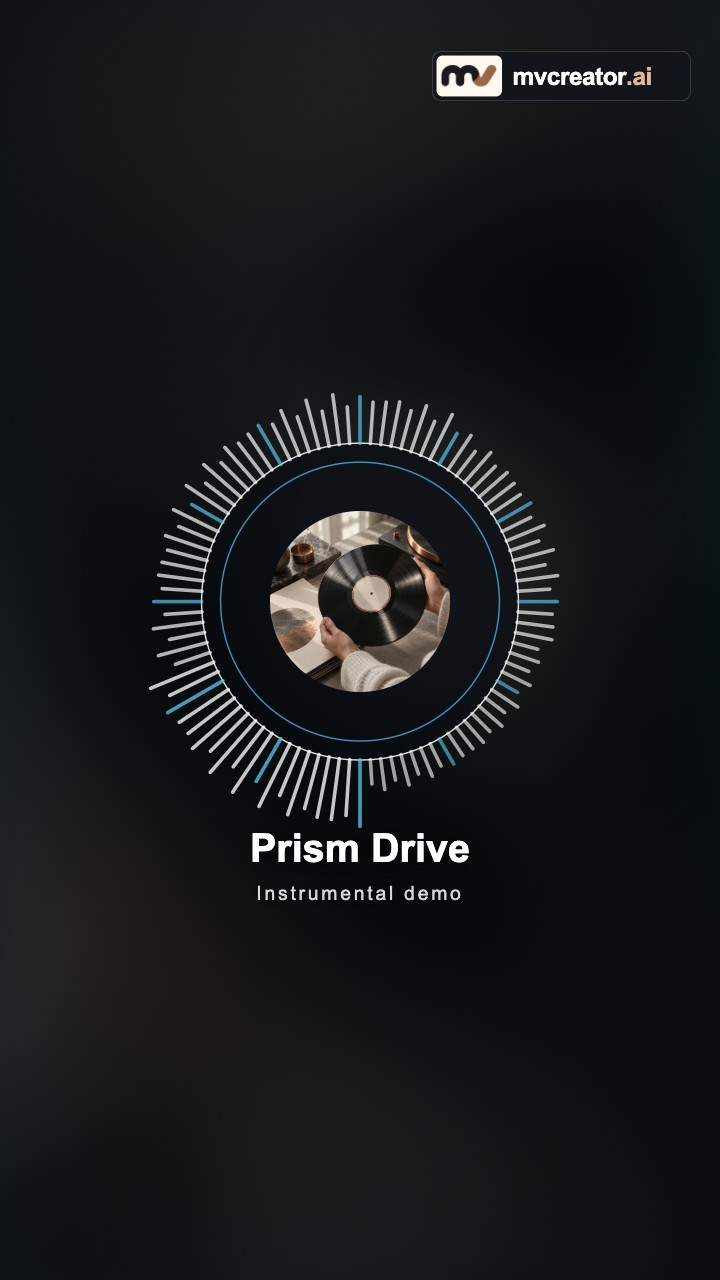
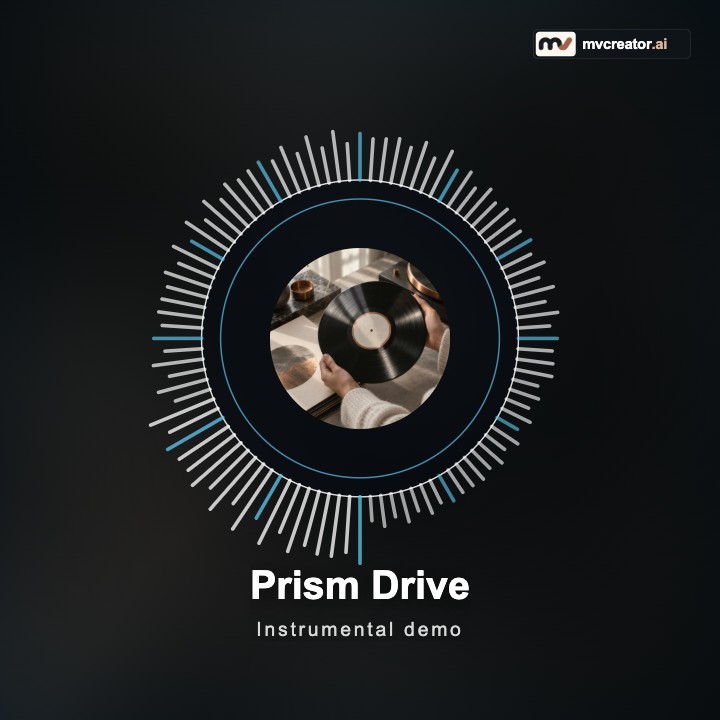
Choose the frame before refining your YouTube music visualizer. These real maker frames show the same release arranged for different screens.

Landscape visualizer frame with artwork, title, and spectrum

16:9 · The channel release

A wide canvas for a regular YouTube upload, with room for the backdrop, track title, and movement.

Check the title at phone size, even when the video itself is landscape.

Portrait visualizer frame rearranged for a vertical screen

9:16 · The vertical excerpt

A tall frame for a separate companion clip. Recompose the artwork and title instead of relying on a landscape crop.

Preview the entire portrait layout before exporting a new version for a tall screen.

Square visualizer frame with centered artwork and audio response

1:1 · The compact companion

A balanced setting that keeps the artwork close to the music. Choose it when a square composition suits the destination.

Compare the cover size with the moving elements, then check that both still have space.

Made for music creators

A song worth coming back to.

Give each video a purpose. A music visualizer for YouTube can introduce the release, present the song, or spotlight another moment.

  1. Before release

    Let the hook introduce you

    Choose one passage that sounds like you. Pair a YouTube music visualizer with the artwork listeners will see on release day.

  2. Release day

    Give the song a place to live

    Keep the artist and track title consistent. Review the downloaded video, then upload the MP4 to your own YouTube channel.

  3. After release

    Find another moment to share

    Try a different excerpt or frame for your next YouTube music visualizer. Keep the palette familiar so the companion clip feels connected.

Illustrated music creator wearing headphones and reviewing a music visual in a warm home studio
Creator illustration · from your home studio to your channel.

The final listen

Ready for their screen?

Give your YouTube music visualizer one last look. Check the quietest passage, the busiest section, and the screen where listeners will watch.

Your next upload starts here
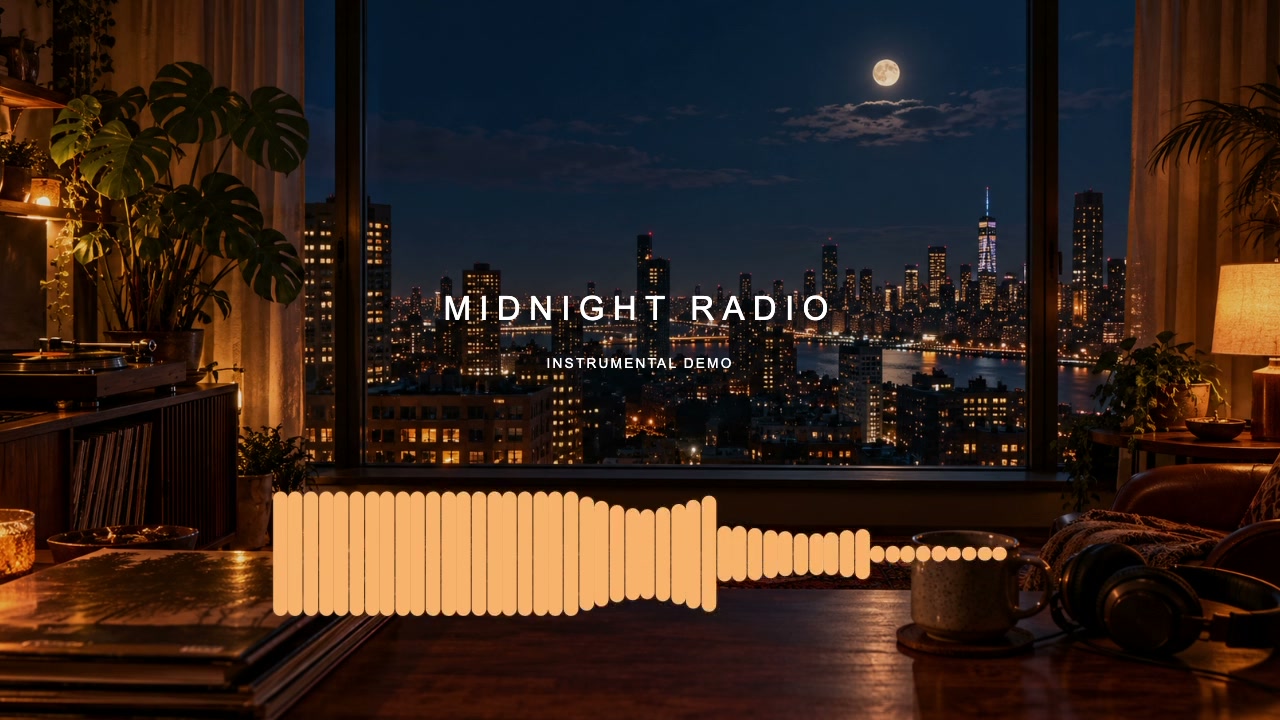
Actual Midnight Radio visualizer frame with a warm moonlit room and spectrum
Midnight Radio · Example release frame
Picture + your musicOne downloadable MP4
  • Hear the whole picture

    Listen to the selected passage from start to finish. Make sure the opening and ending feel intentional for this version.

  • Keep the name readable

    Check the artist and song title against both light and dark parts of the scene. Simplify anything competing for attention.

  • Watch the musical contrast

    Compare quiet and energetic sections in the preview. Choose motion that feels comfortable across the passage, rather than judging one still frame.

  • Review the downloaded file

    Play the MP4 before publishing. Confirm the chosen audio, picture, and frame, then upload the file to the intended channel.

YouTube music visualizer questions

A few details to help you choose your export.

Give your next track a visual home

Start your YouTube music visualizer with a track you want people to hear. Try a scene, shape your look, and make the next release yours.

Start creating

Preview a style, then choose your export settings.